NotebookLM: the updated guide to Gemini Notebook
Universal Design for Learning AI Toolkit
2026 update: Google has renamed NotebookLM to Gemini Notebook. It's the same source-based research tool, with a new name and a more advanced version. In this guide I also use the name NotebookLM, which many people still know and search for.
What would you like to know about NotebookLM?
The app, now called Gemini Notebook, is Google's AI-based research and learning assistant that works with the sources you choose. Instead of relying on general information from the web, it lets you work with documents, articles, websites, videos, images, recordings and learning materials you've uploaded, ask questions about them and get answers grounded in those sources. From the same materials you can produce summaries, lesson plans, presentations, audio overviews and more learning materials — in many languages.
7 practical uses of NotebookLM for teachers
3 practical guides to using NotebookLM
Video tutorials: NotebookLM step by step
Blog posts with more on using NotebookLM creatively
NotebookLM workshop for teachers and education teams
What are NotebookLM's main advantages and features?
-
Answers grounded in your own sources
Gemini Notebook relies on the sources you add to the notebook and shows citations that let you go back to the source and check the answer. With a Gemini Notebook Pro account you can currently add up to 300 sources to a single notebook. Limits vary between account types and are updated from time to time.
-
Connection to the Google ecosystem
Notebooks now also integrate with Gemini and sync across services. You can also add a notebook as a knowledge source for a custom Gem, so the Gem can draw on the library of sources you've built.
-
More efficient learning and work with many sources
Instead of going through dozens of documents by hand, you can ask questions, compare sources, find key ideas and create new outputs from them. Turning materials into an audio overview lets you keep learning and listening while driving, walking or doing something else.
-
The same content in several formats
Gemini Notebook can produce text, audio and visual outputs from your sources — including audio overviews, mind maps, infographics, presentations, quizzes and flashcards. That way you can choose the format that fits the learning goal and the activity.
New features now rolling out
-
Recording talks and ideas directly into the notebook
Google has begun rolling out the ability to record talks, explanations or thoughts directly from the Gemini Notebook app, so the recording becomes one of the notebook's sources and you can keep working with it.
-
Interactive learning reports
Google is gradually rolling out Interactive Learning Overviews in the reports area. They combine summaries with other outputs from the notebook, such as infographics, quizzes and flashcards, in a single learning experience.
-
Voice conversations with the notebook
Soon you'll be able to hold a real-time voice conversation with the notebook in the app, ask questions about the sources, get explanations and continue the conversation out loud. Google cites support for almost 100 languages; the rollout has started for Ultra subscribers and is expected to expand gradually to more users.
On my YouTube channel, you can find videos on Artificial Intelligence and Personalized Learning—accessible to everyone!

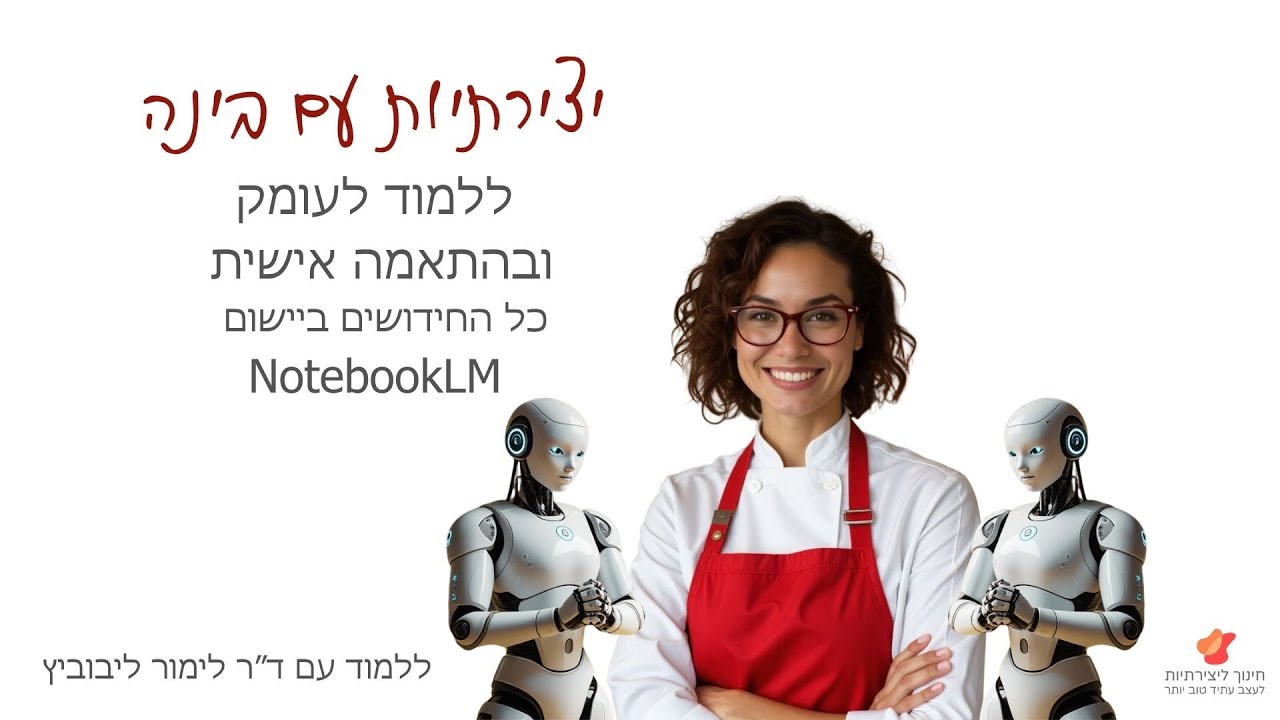


מדריכים מקצועיים ל-NotebookLM בעברית
Watch the full playlist I put together, with examples from the classroom (in Hebrew)
3 practical NotebookLM guides
We all know that every student learns at their own pace. In the age of artificial intelligence, technology offers us a groundbreaking opportunity: With a basic understanding of widely available AI tools, educators can easily transform the learning experience to better meet the needs of each student—while implementing a research-based, innovative pedagogical approach. This approach is known as Universal Design for Learning (UDL). UDL offers a powerful framework for thinking about the many ways students absorb and process information, express themselves, and engage emotionally with learning. By combining UDL with accessible AI tools, you can not only identify individual needs and personalize instruction—you can reimagine what education can be. So how can this look in your own classroom?
On this page, you'll find a curated overview of practical AI tools for teachers and students that save time and enhance learning for every learner. We'll also explore a critical question: How do we prepare children for a world where artificial intelligence is part of everyday life?
This dynamic resource includes an evolving list of recommended tools, further learning suggestions, and online courses that will help you create interactive, personalized, and future-ready learning experiences.
Interested in the topic and want to talk?
Send me a message here and I’ll get back to you soon.
7 practical uses of NotebookLM for teachers
1. A research assistant for student projects
Instead of students getting lost in a sea of information, you can load 20 articles on the topic you're teaching into a notebook. The AI will identify the main challenges for them and suggest ideas for creative projects based only on the sources you defined.
2. Creating an interactive quiz with hints
With one click, NotebookLM turns a semester's learning materials into a multiple-choice test or an open questionnaire. The pedagogical bonus: the system generates hints that point the student to the right source, turning the test into a learning tool and not only an assessment tool.
3. Building professional presentations in Google Slides
This is the fastest runway for a teacher: connect NotebookLM to Gemini Pro, ask for a presentation structure based on the sources, and export it straight to Google Slides. The presentation arrives designed and fully editable, including AI images inside the slides.
4. Making knowledge accessible and personalizing teaching
Do you have a complex academic article or a text in another language? The AI can turn it into everyday language and explain difficult concepts at a 7th- or 9th-grade level (as you define). This lets every student in the class understand the content, regardless of their reading level.
5. Creating a learning podcast (Deep Dive)
This is the most popular use: turn a history or literature chapter into a fascinating audio conversation between two voices. Students can listen to the material on the way to school or during sports, which works especially well for auditory learners.
6. Visual concept mapping (mind map)
The tool lets you create a mind map that scans all the sources at once and connects ideas. Clicking any concept on the map opens an in-depth discussion with the chat, which helps students see the big picture and not only individual details.
7. Flashcards for effective memorization
Based on the sources, the system automatically generates cards with a question on one side and the answer on the other. It's an excellent tool for independent practice at home or in class, helping students master the core concepts of the subject with ease.